
Ever wonder how much you’ve really spent on Amazon? With flash deals, festive sales, and auto-renew subscriptions, it’s easy to lose track. This guide shows simple ways to check your total Amazon spend (lifetime/YTD/category-wise) using Amazon reports, order downloads, or a spending calculator extension.
- Set realistic monthly budgets
- Plan big purchases around major sale events
- Find and cancel unused subscriptions before renewal
- Check if “discounts” are real savings or marketing
- Analyze price trends and compare historical prices (including Flipkart)
- Includes an FAQ to clear common doubts
Steps on How to Check Total Spend on Amazon
Curious how much you’ve spent on Amazon? Whether it’s for budgeting, business tracking, or cutting impulse buys, your total spend gives real clarity. Amazon offers built-in options, and extra tools can make it easier.
Below are methods from quick estimates to detailed reports. Pick what fits your region and detail level to see how much, when, and which categories you spend on most.
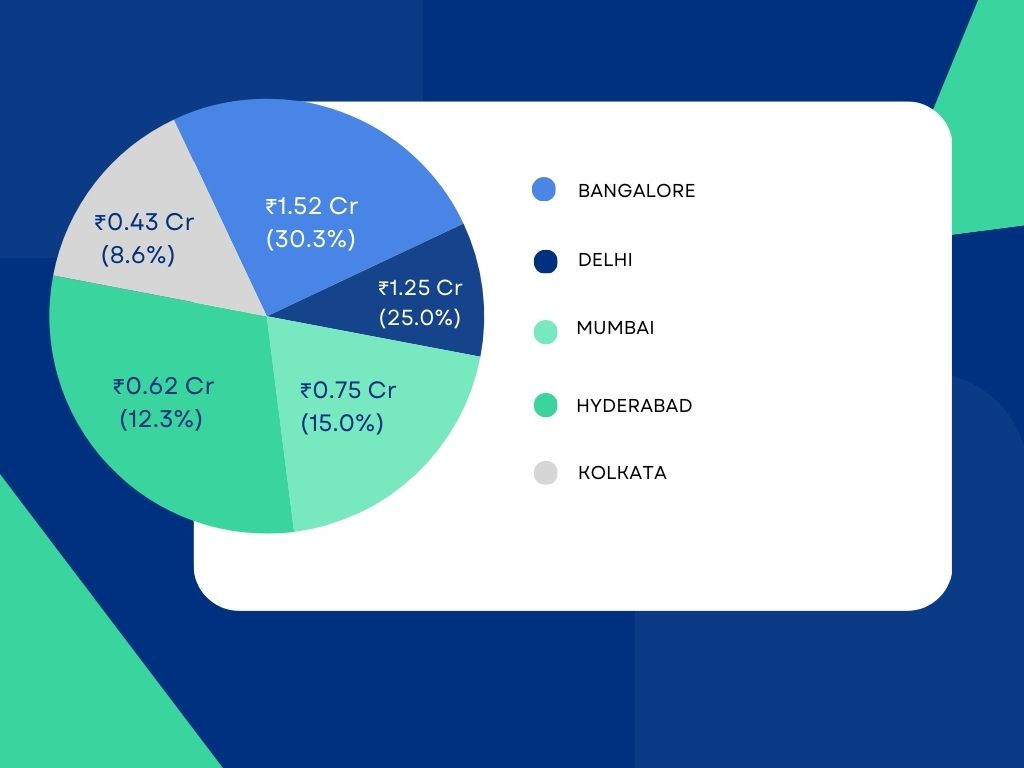
Quick View from Your Orders (Browser or App)
Best for: Rough recent spend
- Sign in to Amazon (desktop/app) → Accounts & Lists → Your Orders
- Filter: Last 30 days / Past 3 months / This year
- Manually add Order Total (skip canceled/returned orders)
- Optional: paste totals into Sheets/Excel and use SUM()
- Pro tip: open orders in new tabs, copy totals faster
- Good when reports/extensions aren’t available
Order History Reports (if available in your country)
Best for: Detailed export (CSV)
- Your Account → Order History Reports (location varies by region)
- Choose report type: Items (line-level) or Orders (order totals)
- Select date range → Request Report → download CSV
- Clean data (remove returns/replacements/cancellations)
- Use formulas (SUM items + shipping + tax − promos)
- Use Pivot Tables (by month/category) for trends
- Pro tip: keep a template sheet to paste new CSV monthly
Gift Cards, Credits, and Subscribe & Save Adjustments
Best for: True net spend
- Gift cards/credits reduce what you paid out of pocket (see Gift Cards/Payment Options)
- In CSV, check columns like giftcard or promotion
- Be careful with Subscribe & Save so you don’t double count future/estimated charges
- Net Spend = (Items + Shipping + Taxes + Fees) − (Gift Cards + Credits + Promotions + Refunds)
Monthly/Yearly Manual Ledger (works everywhere)
Best for: Consistent tracking without tools
- Make a sheet: Date, Order ID, Items, Shipping, Tax, Promotions, Gift Card, Final Paid, Notes
- Monthly: enter new orders from Your Orders
- Use formulas to compute Final Paid and track YTD total
- Optional: 12-month chart for trends
Use a Spending Calculator Tool/Extension
Best for: Fast totals + charts without manual work
- Extensions/tools can import orders and auto-calculate spend by timeframe
- Often show charts + category breakdowns and may support Flipkart too
- Use trusted tools, check reviews, and prioritize privacy
Using the Amazon Spending Calculator Extension
A dedicated Spending Calculator extension is a powerful tool that helps you effortlessly import, sum up, and visualize your entire Amazon spending without the usual manual hassle. Typical benefits include:
- One-click imports directly from your Orders page (where supported), making the setup quick and seamless.
- Automatically cleaned totals that exclude any returns or canceled items, ensuring your summary reflects only genuine expenses.
- Interactive charts displaying month-over-month spending trends, category-wise share, average order value (AOV), and even how effective your discounts have been over time.
- Built-in budgets with customizable alerts that notify you when you reach 50%, 80%, and 100% of your preset spending limits, helping you stay financially disciplined.
- Options to export your data to CSV or Excel files for easy backup or personal analysis outside the extension.
- Privacy-focused controls such as local-only data storage mode and one-tap data purging to keep your information secure and under your control.
If you want a ready-made, comprehensive solution, consider EcomBullet. This platform offers a complete spending calculator workflow combined with advanced ecommerce analytics designed to save you time and reduce any regret after checkout.
How to Use the Amazon Spending Calculator Extension
Tracking Amazon spending manually can be slow and error-prone. The Amazon Spending Calculator extension automates imports, shows trends, and helps you monitor budgets, without spreadsheets. Here’s the simplified setup and usage.
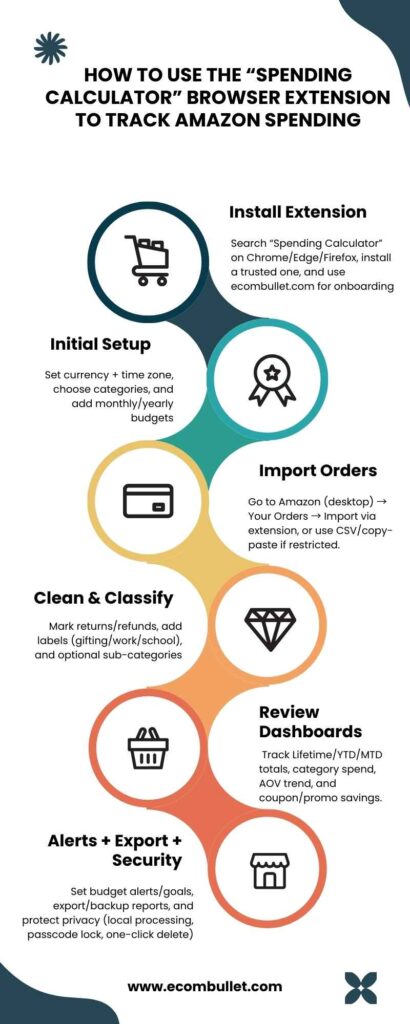
Install the Extension
- Search “Spending Calculator” on Chrome Web Store / Edge Add-ons / Firefox Add-ons
- Pick a trusted option → Add/Install
- For full onboarding resources and tips, visit ecombullet.com
Initial Setup
- Set currency (₹/$/€) + time zone
- Choose categories (Electronics, Books, Fashion, Groceries, Household, Beauty, Pets, Baby)
- Add budgets (monthly/yearly), e.g. ₹12,000 overall; ₹3,000 groceries; ₹2,000 household
Import Orders
- Log in to Amazon (desktop) → Your Orders
- Extension → Import (auto-reads orders where allowed)
- If automation is restricted: use CSV import (Order History Report) or copy-paste mode
Clean & Classify
- Mark returns/refunds for accurate totals
- Add labels (Gifting, Work Equipment, School Supplies)
- Optional: use sub-categories for deeper trend tracking
Review Dashboards
- Totals: Lifetime / YTD / MTD
- Category Spend: biggest spend areas
- AOV Trend: average order value changes
- Coupon/Promo Tracking: see what actually saved money
Set Alerts & Goals
- Alerts at 50% / 80% / 100% of monthly budget
- Set goals like “Cut electronics to ₹2,000” or “₹0 impulse accessories”
Export & Backup
- Export reports as CSV/Excel (monthly/weekly)
- Backup via browser profile or extension backup (if available)
Privacy & Security
- Prefer local-only processing when possible
- Use passcode lock (if supported)
- One-click delete to remove stored data and keep insights private
Amazon Spending Calculator Online
Not comfortable installing browser extensions? No worries! You can effortlessly track your Amazon spending using an online calculator or even a shared spreadsheet template designed for this purpose.
- Simply input key details like the date, order total, shipping fees, taxes, promo codes, gift card usage, and the final amount paid.
- The tool automatically calculates your totals by month, quarter, and year, giving you a clear financial snapshot over different time frames.
- Visually insightful charts display your category-wise share of wallet, overall spending trends, and a useful comparison of discounts vs. original MRP to highlight your savings.
- A handy budget bar acts as a visual progress meter, showing how close you are to reaching your monthly spending limit.
- Export your data effortlessly into CSV or Excel formats, along with a neat one-page monthly summary report for easy bookkeeping or sharing.
A simple yet effective workflow suggestion: Keep a dedicated Google Sheet pinned to your bookmarks. At the end of each week, update it by copying new orders or pasting short summaries, and let the built-in formulas handle the rest, updating your totals and graphs automatically to save you time and effort.
Amazon Price History Check (How to View Previous Prices on Flipkart)
Tracking price history helps you avoid overpaying by showing how prices change, when they hit lows, and when it’s best to buy. Amazon and Flipkart both support price tracking (tools + manual methods) so you can save more on electronics, fashion, and essentials.
Amazon Price History – Smart Manual Checks
- Wishlist/Cart Watch: Add items to Wishlist/Cart, track price changes for a few days in notes/table
- Compare Variants: Check color/size/model options—some variants are cheaper
- Deal Patterns: Prices often dip around weekends/festivals (Diwali, year-end)—timing matters
- Subscribe & Save: Schedule essentials during promo periods to combine discounts
- Warehouse/Refurb: Look for open-box/warehouse/refurb listings for extra savings
Flipkart – View Previous Prices (Manual & Practical)
- Wishlist + Screenshots: Add to wishlist and screenshot prices daily/weekly to build a history
- Compare Sellers: Same product can have different seller prices—some stay lower
- Festival & Bank Offers: Note the effective price after bank discounts during sales cycles
- Version Swaps: Check model/year—older versions are usually discounted
- Cross-Check: Compare Amazon vs Flipkart final price (cashback, coupons, shipping, fees)
Bottom line: Even without apps, a consistent wishlist + note-taking reveals the “usual” price vs real sale deals, helping you buy at the right time.
Conclusion
Tracking your total Amazon spend isn’t just curiosity—it gives you real financial clarity and control.
- Choose a method that fits you: manual totals (Your Orders), Order History Reports + spreadsheet, or a Spending Calculator extension
- Any option helps you understand and control your shopping habits and expenses
- Add price-history tracking on Amazon + Flipkart to spot real discounts and buy at the right time
- Set a baseline today: export/import last 3–6 months, set realistic monthly budgets, and turn on budget alerts
- This simple routine keeps you accountable and leads to smarter spending long-term
FAQs for Check Total Spend on Amazon
Q1) Can I see my lifetime spend in one click on Amazon?
Ans:- Not typically. Amazon doesn’t provide a one-click lifetime spend view. You’ll either need to manually sum your orders, download detailed order history reports, or use a spending calculator extension that aggregates totals automatically for you.
Q2) I don’t see Order History Reports. What now?
Ans:- Some regions or accounts don’t have access to Order History Reports. In that case, use the manual ledger method to track orders or opt for a spending calculator extension that supports CSV copy-paste or parses order data directly on the page.
Q3) How do I make sure returns aren’t counted in my spend?
Ans:- In your spreadsheet or tracking tool, always mark returns and refunds explicitly. Your net spend is what you actually paid after subtracting refunds and applying any promotions.
Q4) Do gift cards reduce my total spend?
Ans:- Yes and no. If you bought a gift card with your money, it’s still your expenditure overall. But when calculating actual cash outflow on Amazon, subtract gift card redemptions to reflect what money actually left your pocket.
Q5) Can I track spend across multiple Amazon accounts?
Ans:- Yes. Export or import the order histories from each account separately. Then combine the data in a master spreadsheet or an advanced spending extension, using tags to identify each account’s purchases.
Q6) What about household accounts with shared Prime?
Ans:- Tag each user or cardholder in your spend tracker (e.g., “Me,” “Partner,” “Kids”) so you can split or attribute purchases accurately within a shared account.
Q7) How do I budget realistically?
Ans:- Start by calculating your three-month average spend as a baseline. To reduce spending, set your next month’s budget 10–20% lower and enable spending alerts at 50%, 80%, and 100% of that budget.
Q8) Any tips to avoid impulse purchases?
Ans:- Try a 48-hour cooling-off period: move items to your Wishlist and revisit them after two days. Only buy if the purchase still feels necessary, helping curb impulse buying.
Q9) How do I check price history without special tools?
Ans:- Maintain a simple log in your notes or spreadsheet with the date and price. Track prices for one or two weeks to understand a product’s typical vs. promotional pricing.
Q10) Is there a way to capture screenshots automatically?
Ans:- If you prefer visual records, set a weekly reminder to screenshot your Wishlist or Cart prices and save them in a dated folder. This makes it easier to compare historical prices visually.
Q11) Can I analyze category-wise spend (electronics vs. groceries)?
Ans:- Yes. Add a category column in your spreadsheet or use a spending calculator that automatically tags categories and shows share-of-wallet charts for better insights.
Q12) How often should I review my spending?
Ans:- Monthly reviews are ideal for budget control, with quick weekly checks to ensure you stay under your limits and spot forgotten recurring subscriptions.
Q13) How do I include shipping, taxes, and fees accurately?
Ans:– Use the specific columns from your CSV export or add these details manually in your ledger. Your “Final Paid” amount should reflect all charges including shipping, taxes, and fees.
Q14) Can I sync across devices?
Ans:- Yes, if your extension or app supports cross-device sync. Otherwise, use cloud solutions like Google Sheets for easy access, backup, and version history across devices.
Q15) Where can I find a ready-made calculator?
Ans:- Visit https://ecombullet.com/ for an expertly designed Spending Calculator workflow, complete with setup guides and pro budgeting tips tailored for everyday online shoppers.